> For the complete documentation index, see [llms.txt](https://docs.spacestake.tech/llms.txt). Markdown versions of documentation pages are available by appending `.md` to page URLs; this page is available as [Markdown](https://docs.spacestake.tech/guides/how-to-stake-atom-with-keplr.md).
# How to Stake ATOM with Keplr
Keplr Wallet: Staking Cosmos-Hub Tokens — A Simplified Guide
## **Step 1: Setting Up Your Keplr Wallet Account**
* Visit [Keplr's website](https://www.keplr.app/) to start.
* Download the Keplr wallet extension for Google Chrome, or choose the mobile app for iOS or Android.
* In the Google Chrome extension, open the wallet from the extensions tab and select "Create new account."
* Choose a mnemonic seed (12 or 24 words), note it down safely, then create a username and password.
* Re-enter the Mnemonic Seed to finish setting up your account in Keplr Wallet.
## **Step 2: Depositing ATOM in Your Wallet**
* Access your Keplr account using the password you created.
* Click on "Deposit" button, and search for "ATOM"
* Copy the ATOM address from Keplr and paste it into the platform where your ATOM tokens are located to transfer them.
Click on this icon to copy the address
Click on this icon to copy the address
* Note that you can start by earning some ATOM on [**Final Autoclaim**](https://autofaucet.dutchycorp.space/), that's a free way to get your first staking bag without buying anything.
## **Step 3: Staking Your ATOM Tokens**
* Go to the [**SpaceStake Delegation link**](https://wallet.keplr.app/chains/cosmos-hub?chain=cosmoshub-4\&modal=validator\&validator_address=cosmosvaloper1x8yjkhrffte4850tzdtfuq6nhs5vf950l86uea), this will redirect you to the Keplr website.
* Click on the "Stake" button.
* Enter the amount of ATOM you wish to stake and click “Stake” again.
* Confirm the transaction on Keplr by clicking on "Approve." button
* Your staking status and rewards can now be monitored.
## **Step 4: Automatically Restake Your ATOM staking rewards**
**Our validator is compatible with the automatic restaking system via REStake (**[**restake.app**](https://restake.spacestake.tech/cosmoshub/)**).**
**By enabling restaking, all your ATOM rewards from staking will be automatically delegated to your staking balance once you reach the minimum required reward (0.1 ATOM).**
REStake only re-delegates SpaceStake's accrued rewards and tries not to touch your balance.
**How to enable Restaking:**
* Go to the [SpaceStake Restaking link](https://restake.spacestake.tech/cosmoshub/cosmosvaloper1x8yjkhrffte4850tzdtfuq6nhs5vf950l86uea), this will redirect you to the reskake.app page.
* Click the "Enable REStake" button.
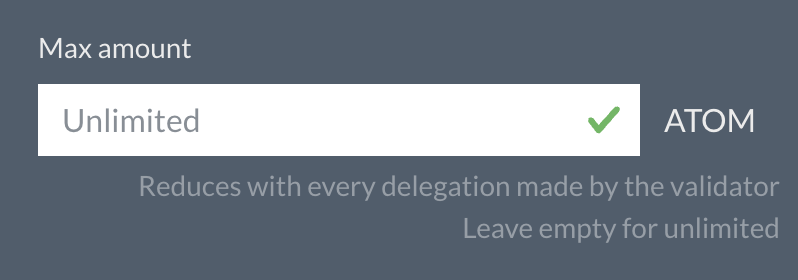
* Choose the maximum amount that you allow us to delegate for you; **you can keep it to unlimited**.
* **Set the expiry date**; after this date, the system will not be able to automatically delegate your rewards anymore.
* Click the "Enable REStake" button, and sign the transaction on your wallet.
At this step, you must see your grant status as "Active"; that means you successfully enabled restaking. Congratulations!
Every 4 hours, we will check if your staking rewards are higher than 0.1 ATOM; if yes, your rewards will be automatically re-delegated, so you will earn more.
## **Validator Information and Support**
* SpaceStake validator address: `cosmosvaloper1x8yjkhrffte4850tzdtfuq6nhs5vf950l86uea`
* Monitor the validator status on the [**MintScan Explorer page**](https://www.mintscan.io/cosmos/validators/cosmosvaloper1x8yjkhrffte4850tzdtfuq6nhs5vf950l86uea).
* For questions or assistance, you can **contact us at **